Wazuh - VirusTotal Integration (Windows)
Configure Wazuh to integrate with the VirusTotal API for automated file reputation checks and real-time threat intelligence.
Objective
Integrate VirusTotal API with Wazuh (SIEM) to perform automated file reputation analysis and real-time threat intelligence enrichment. This guide outlines how to configure Syscheck (File Integrity Monitoring) on Wazuh agents, and map VirusTotal integration blocks within the Wazuh Manager configuration.
Skills Learned
- Wazuh Manager Integration Architecture: Configuring
<integration>blocks inossec.conffor external threat intelligence providers. - Syscheck & FIM Orchestration: Configuring directory monitoring parameters and real-time alerts to feed external integration scripts.
- API Key Management & Rate-Limiting: Managing VirusTotal API limits (e.g., 4 requests/min on public free tier) and handling response payload JSON objects.
Prerequisites
- Wazuh Manager running version 4.x or higher.
- Wazuh Agent installed on target endpoint (Windows) with Syscheck (FIM) enabled.
- VirusTotal API Key (Free Community or Enterprise API Key).
Steps
Step 1: Obtain VirusTotal API Key
- Sign up or log in to VirusTotal.
- Navigate to your user profile menu in the top right corner and select API Key.
- Copy your unique API key string.

Step 2: Configure Syscheck (FIM) via Wazuh Dashboard Groups
To manage configurations centrally without editing local ossec.conf files on every host, push Syscheck parameters to agent groups directly through the Wazuh Dashboard using Centralized Configuration (agent.conf).
- Access Group Configuration in the Dashboard:
- Open the Wazuh Dashboard.
- Navigate to Agent management > Groups.
- Select the target group you want to configure (e.g.,
Workstations).
- Edit the Group’s Files Configuration (
agent.conf):- Click the Edit group configuration button (pencil/code icon).
-
Add the Centralized
<syscheck>XML Configuration:1 2 3 4 5 6
<syscheck> <!-- Real-time monitoring for instant VirusTotal checks --> <directories real_time="yes">C:\Users\*\Downloads</directories> <!-- Ignore temporary download files to save VirusTotal API quota --> <ignore type="sregex">\.tmp$|\.crdownload$|\.partials$|\.opdownload$</ignore> </syscheck>
Note Restart the Wazuh Agent to apply changes
Step 3: Configure VirusTotal Integration on Wazuh Manager
- Log in to your Wazuh Manager terminal as
root. -
Edit the main configuration file
/var/ossec/etc/ossec.conf:1
sudo nano /var/ossec/etc/ossec.conf -
Add the
<integration>block near the end of the file (before</ossec_config>):1 2 3 4 5 6
<integration> <name>virustotal</name> <api_key>YOUR_VIRUSTOTAL_API_KEY_HERE</api_key> <group>syscheck</group> <alert_format>json</alert_format> </integration>
Configuration Breakdown:
<name>: Specifies the built-in integration script (/var/ossec/integrations/virustotal).<api_key>: Your VirusTotal API key.<group>: Triggers VirusTotal analysis whenever alerts in thesyscheckgroup are generated.<alert_format>: Set tojsonfor proper log parsing.
Step 4: Verification and Testing
Now, let’s download a malicious file on one of our agents.
Warning Download the Eicar file for testing purposes only.
-
Trigger the Alert via Browser Download:
-
Open a browser on a target endpoint/agent and navigate to the official EICAR Anti-Malware Test File page
https://secure.eicar.org/eicar.com.txt - Right-click on the eicar.com (or eicar.com.txt) download link and select Save link as… / Save target as….
- Save the file directly into your monitored directory (e.g., Downloads).
-
-
Verify Dashboard Events & VirusTotal Alerts:
Navigate to the Wazuh Dashboard > Threat hunting. Search for Rule ID 87105 by adding a filter with the below parameters
- Field = rule-id
- Operator = is
- Value = 87105
Inspect the event document details to verify the community malicious score (data.virustotal.positives = 65).
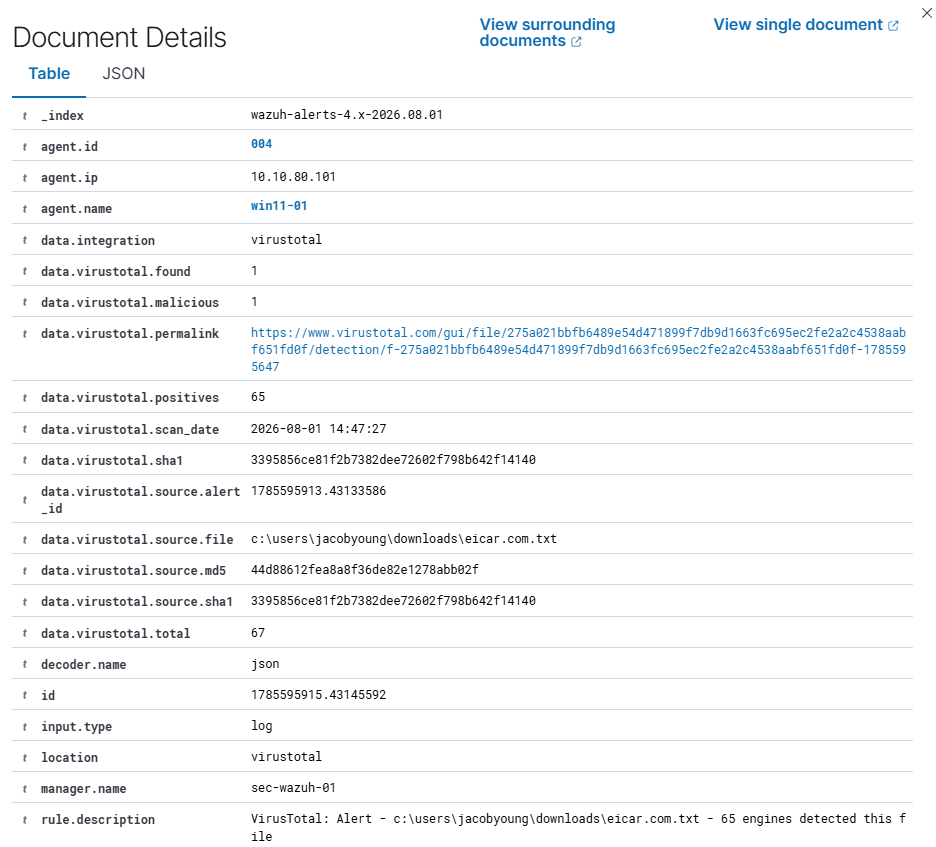
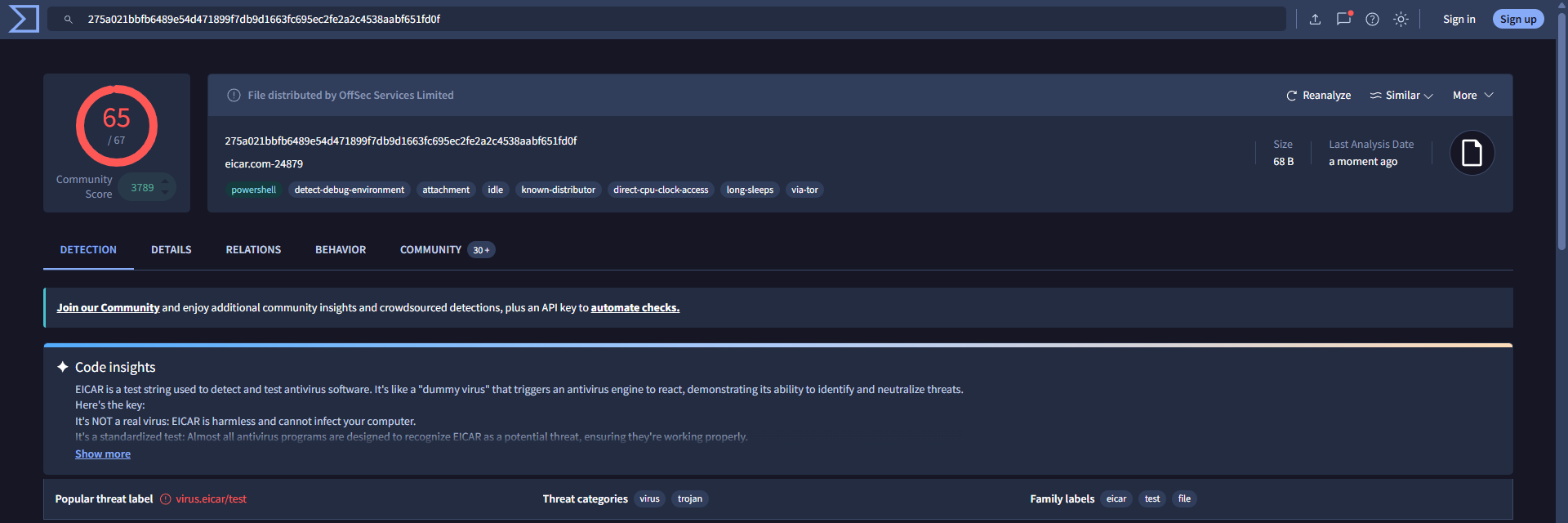
Now we can click on the VirusTotal URL (data.virustotal.permalink) that will allow us to head straight over to the VirusTotal page to see the Detections, Details, Relations, Behaviors, and Community Observations.
Notes
- Public API Rate Limits: Standard free VirusTotal API keys are limited to 4 requests per minute and 500 requests per day. Monitor API usage to avoid rate limit throttling.
- Privacy Considerations: FIM sends file hashes (MD5, SHA1, SHA256) to VirusTotal for lookup. It does not upload full file contents unless configured with specialized scripts
What’s Next?
Now that Wazuh is enriching alerts with VirusTotal threat intelligence, the next step is taking automated action when a malicious file is detected.
Check out Wazuh - VirusTotal Active Response Integration (Windows). to configure local PowerShell scripts that remove flagged threats instantly.