How to rotate the KRBTGT user account with PowerShell
Learn how to safely rotate the KRBTGT account password twice to invalidate existing Kerberos tickets and help protect Active Directory from Golden Ticket attacks.
Objective
The KRBTGT account is used by Kerberos for ticket-granting operations within Active Directory. This guide outlines the procedure to safely rotate the KRBTGT account password twice, ensuring both the current and previous Kerberos keys are invalidated.
Rotating the KRBTGT password twice is required because Active Directory maintains both a current and previous password hash. Performing two rotations ensures all previously issued Kerberos tickets are invalidated, mitigating risks such as Golden Ticket attacks.
When to Use This Procedure
Perform KRBTGT rotation under the following conditions:
- After a suspected or confirmed Active Directory compromise
- During incident response (e.g., Golden Ticket mitigation)
- As directed by security or audit requirements
Impact and Risk
⚠️ Expected Impact
- Existing Kerberos tickets will become invalid over time
- Users may be required to re-authenticate
- Services relying on Kerberos may experience temporary disruption
⚠️ Risks
- Authentication failures if domain controllers are unhealthy
- Replication issues may cause inconsistent key distribution
- Service outages if performed outside a maintenance window
✅ Mitigation
- Perform during a scheduled maintenance window
- Validate domain controller health prior to execution
- Ensure replication is fully functional
Prerequisites / Pre-Checks
Complete all checks before proceeding:
- Verify Replication Health
Run:
repadmin /replsummary- Ensure no replication failures exist - Verify Domain Controller Availability Confirm all domain controllers are online and reachable
- Identify Primary Domain Controller (PDC Emulator) Open Active Directory Users and Computers (ADUC) Navigate to: Domain → Right-click → Operations Masters Perform all operations from the PDC Emulator
- Verify Time Synchronization
- Ensure all domain controllers have synchronized system time Kerberos requires tight time alignment to function properly
Steps
Part 1. Download the PowerShell Script
Once downloaded, you will have to right click on the .zip file and unblock it, then extract the .zip folder
https://github.com/microsoftarchive/New-KrbtgtKeys.ps1
SHA256: 6F47FDCD6AAB1B21F7FF1D101632BA4301D215C9EE03AF21DFAFCA85F8383C4F
Part 2. Validate all domain controllers are reachable
The first critical step that we want to validate before rotating the KRBTGT credentials, is to validate that all of our domain controllers are reachable. Open PowerShell as Administrator and execute the New-KrbtgtKeys.ps1 script. This script will start the process.
If you would like to read the instructions (I highly recommend that you do) type YES. During this process, I’ll go ahead and select NO, as I have gone through this process.

Now that we are at the main menu of this operation, let’s enter in ‘1’ so that we can validate all of our domain controllers are reachable.
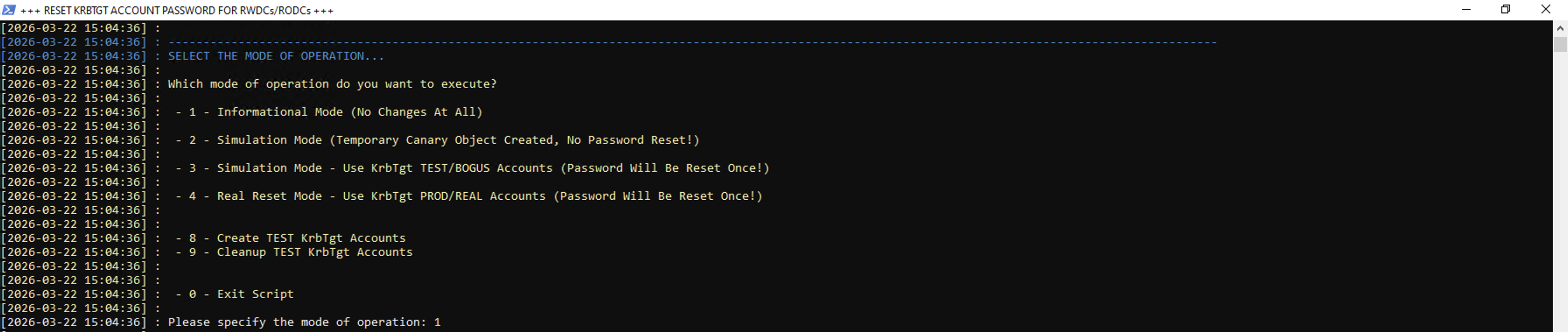
After typing 1 and hitting enter, it’s going to prompt you to type out the FQDN of which domain you would like to target. In this case, I only have one domain, so I will just hit enter.

Now that it sees my domain that I would like to target, if you had more domains listed, you would be required to type out the FQDN of that domain. In my case, since I only have one domain, I’ll hit enter again.

Here, we can now see that both of my domain controllers are reachable, so we can proceed with creating the KRBTGT_TEST user account (Mode #8)

Now close out PowerShell
Part 3. Creating a KRBTGT_TEST user account to validate credentials rotation
Open PowerShell as Administrator and execute the New-KrbtgtKeys.ps1 script.
This time, we are going to select Mode #8
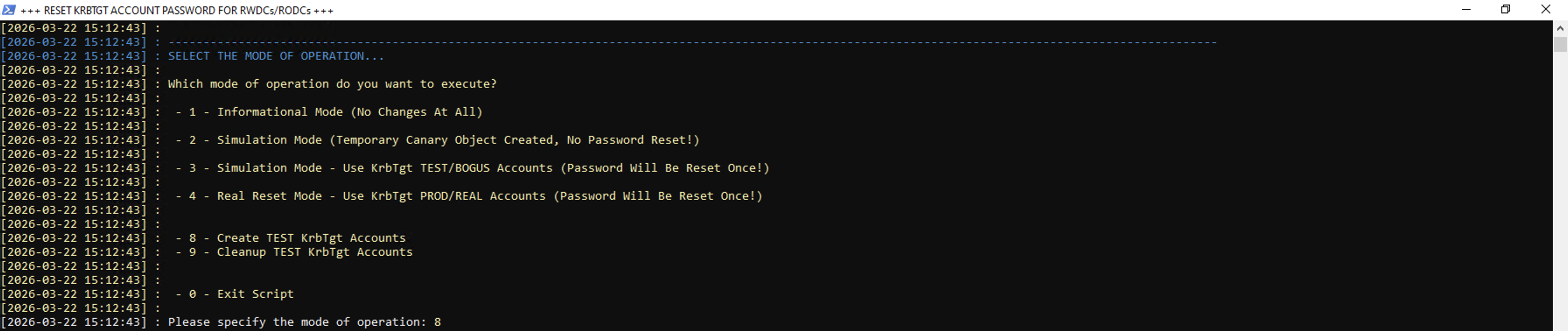
Since, we again only have one domain that we will be targeting, you do not need to specify the FQDN, so you can hit Enter, and then Enter again.
The next prompt will ask whether you would like to CONTINUE or STOP.
One key point to check, is that all of your domain controllers listed will have the new KRBTGT_TEST user account added.
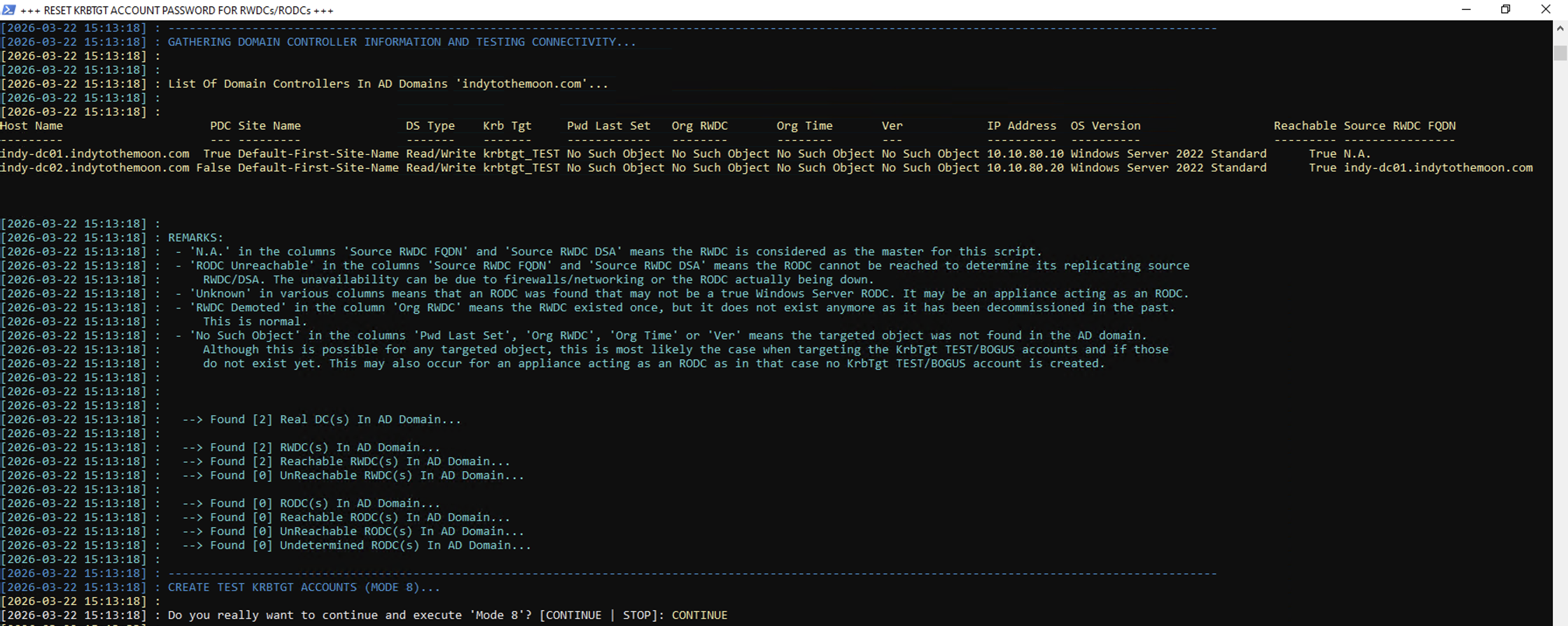
Once you type out CONTINUE, you will now be able to see within Active Directory, that the new KRBTGT_TEST user account has been created under the Users organizational unit.
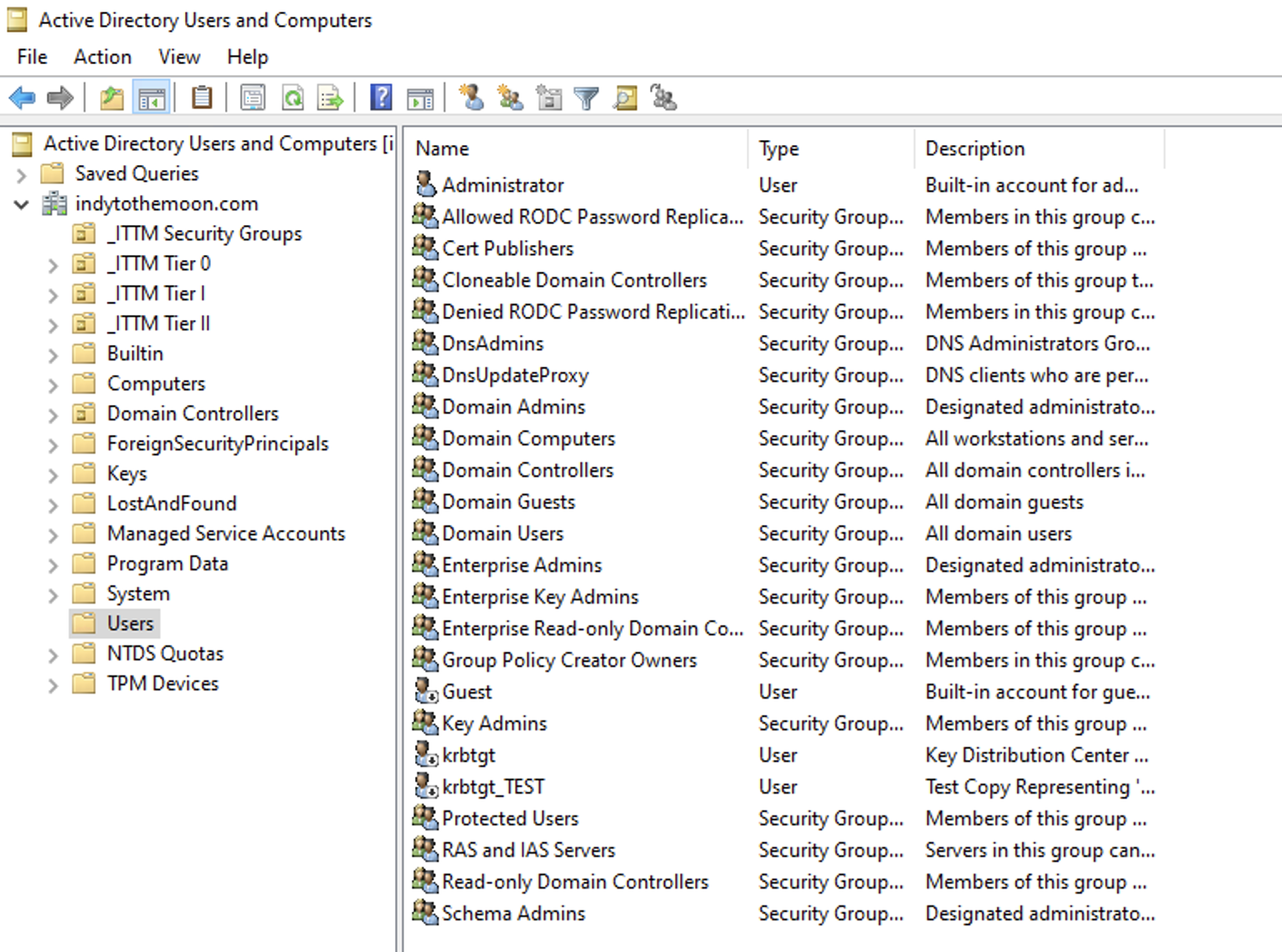
Now, let’s rotate the credentials to the KRBTGT_TEST user account.
Open PowerShell as Administrator and execute the New-KrbtgtKeys.ps1 script once again.
This time, we are going to select Mode #3
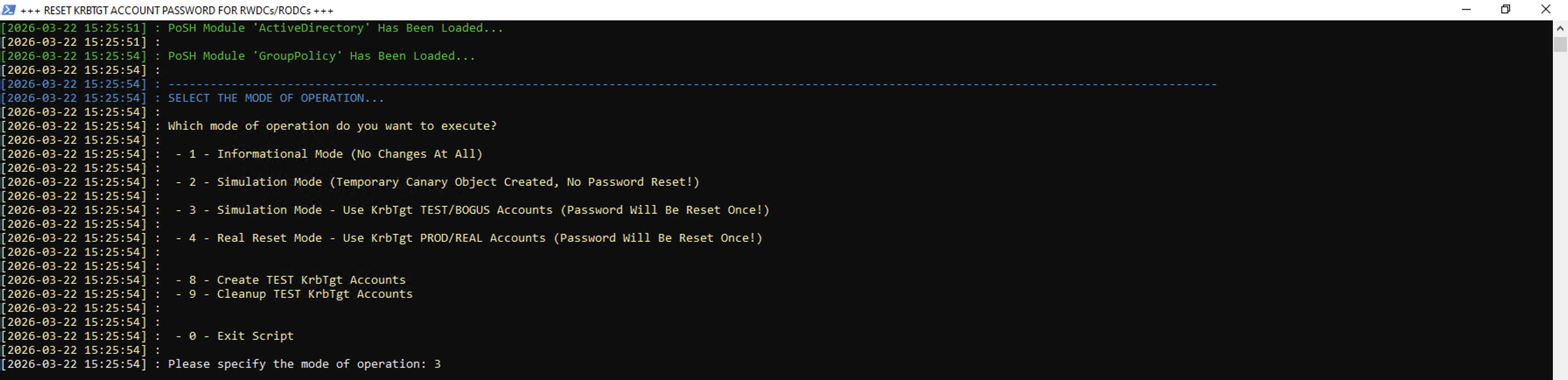
Similar story again, we only have one domain that we will be targeting, you do not need to specify the FQDN, so you can hit Enter, and then Enter again.
This next step, will prompt which KRBTGT_TEST user account you would like to target. Since we do not have any Read-Only Domain Controllers (RODC), we will type ‘1’
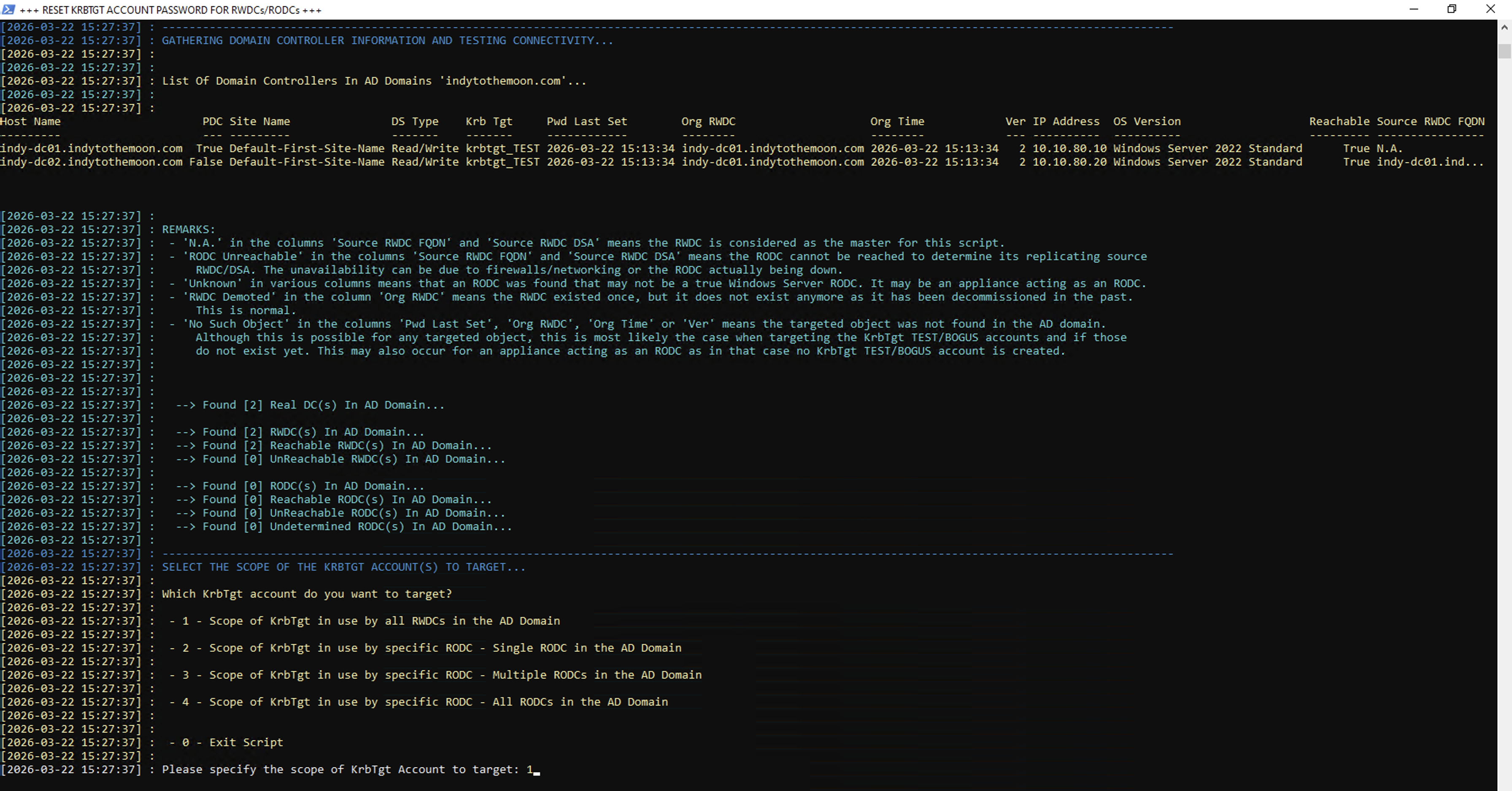
Now that we are ready to rotate the KRBTGT_TEST credentials, we will type CONTINUE.

We will then type CONTINUE again
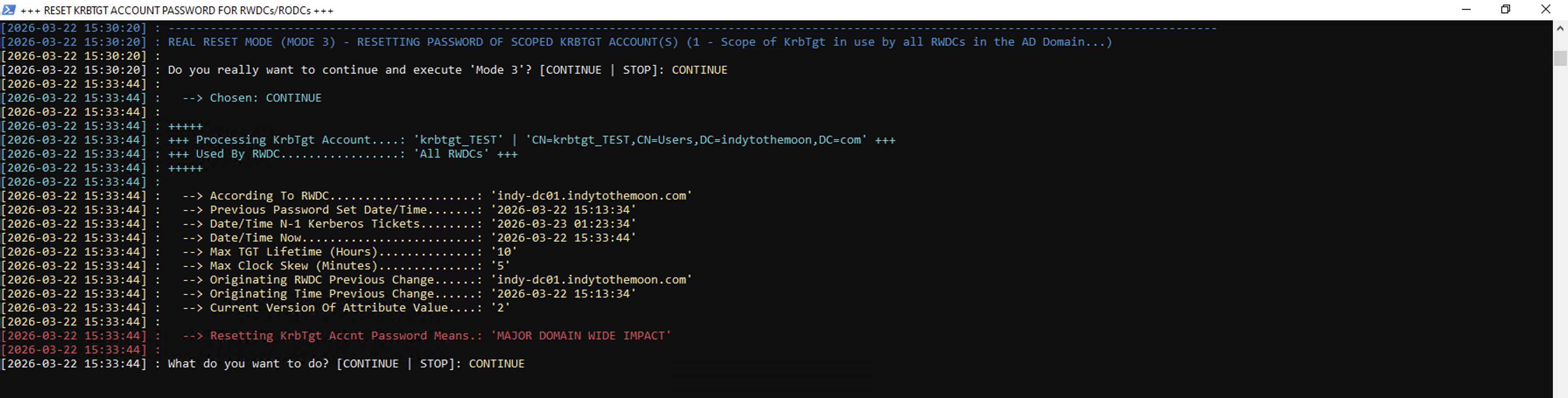
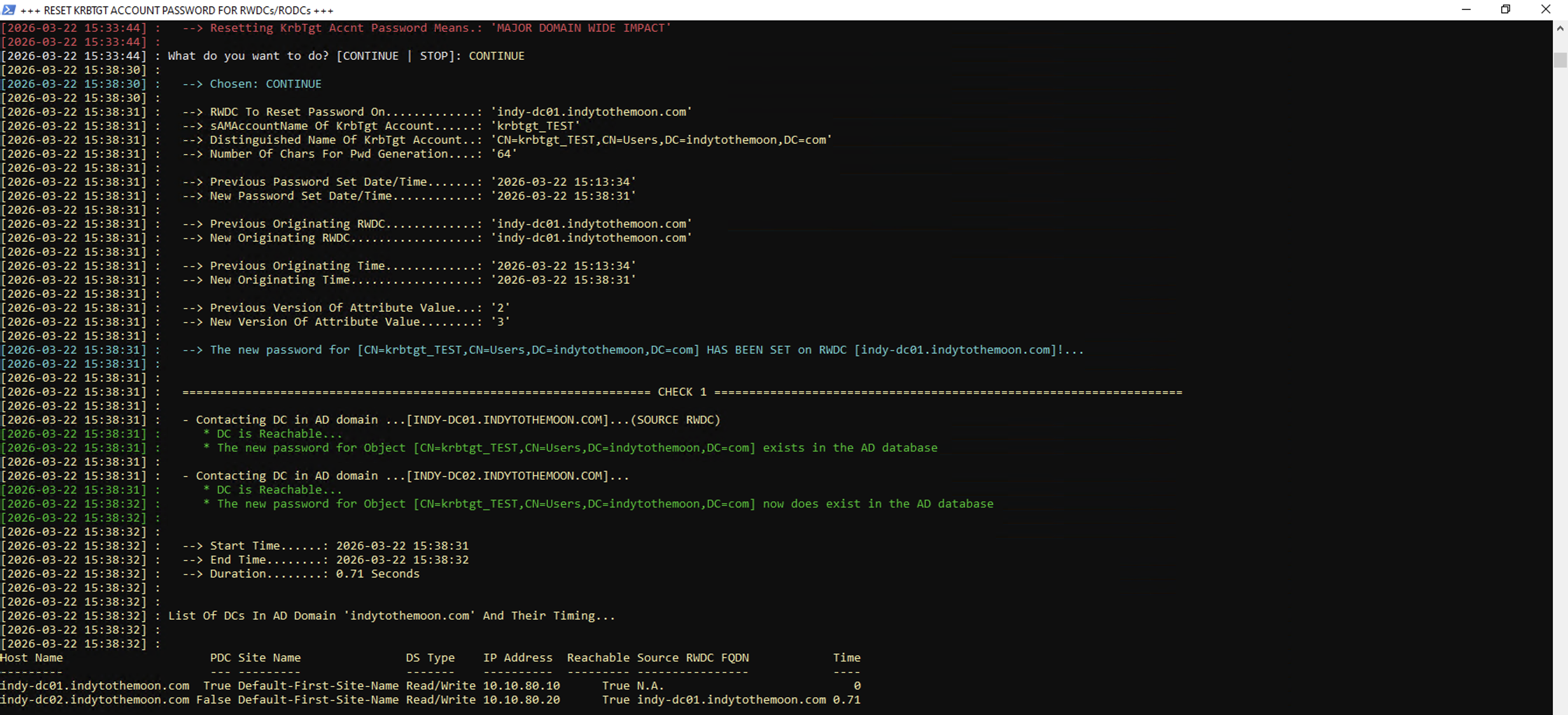
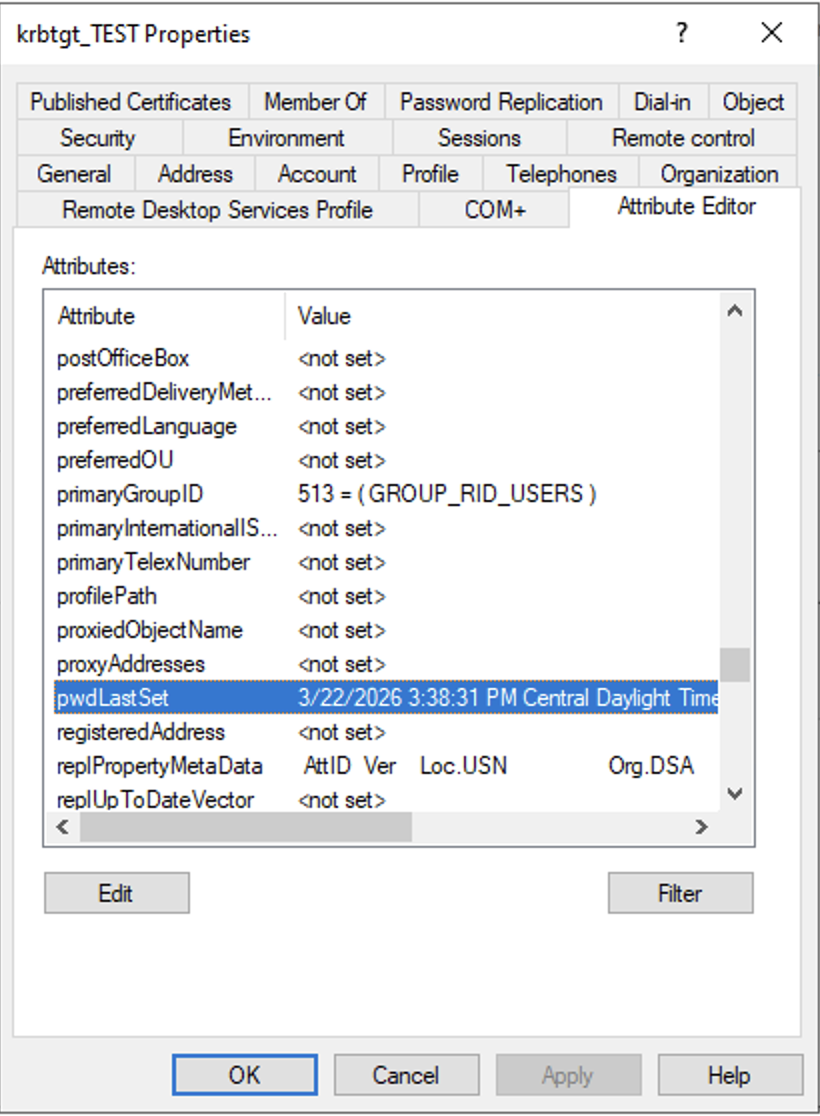
We have successfully rotated the KRBTGT_TEST user account credentials. We can double check on each domain controller, by navigating to the KRBTGT_TEST user account, and looking at the pwdLastSet attribute.
As we can see, it was just rotated on 03/22/2026
Part 4. Rotate the KRBTGT user account credentials (First Round)
Open PowerShell as Administrator and execute the New-KrbtgtKeys.ps1 script.
This time, we are going to select Mode #4
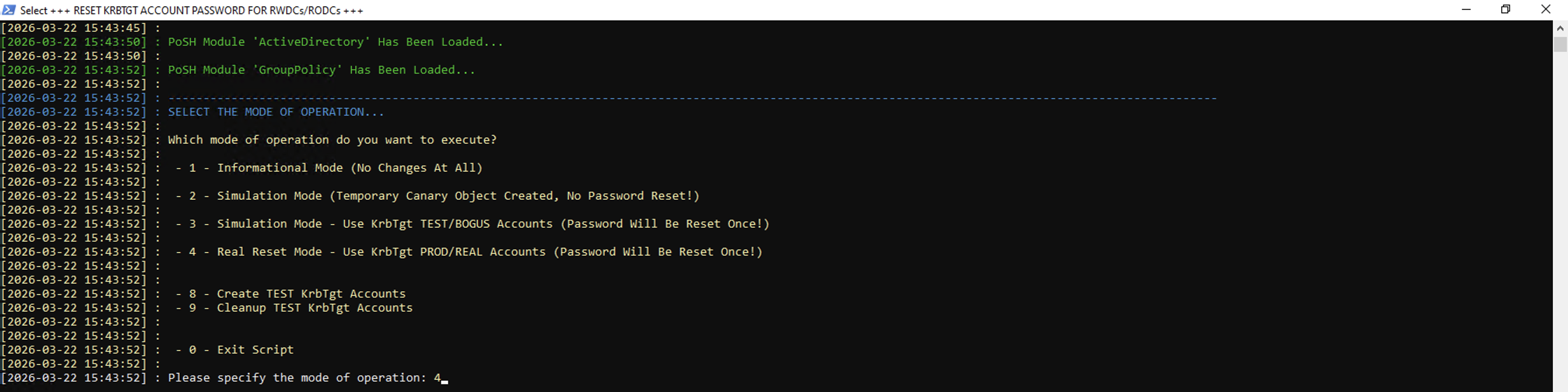
Similar story again, we only have one domain that we will be targeting, you do not need to specify the FQDN, so you can hit Enter, and then Enter again.
This next step, will prompt which KRBTGT user account you would like to target. Since we do not have any Read-Only Domain Controllers (RODC), we will type ‘1’
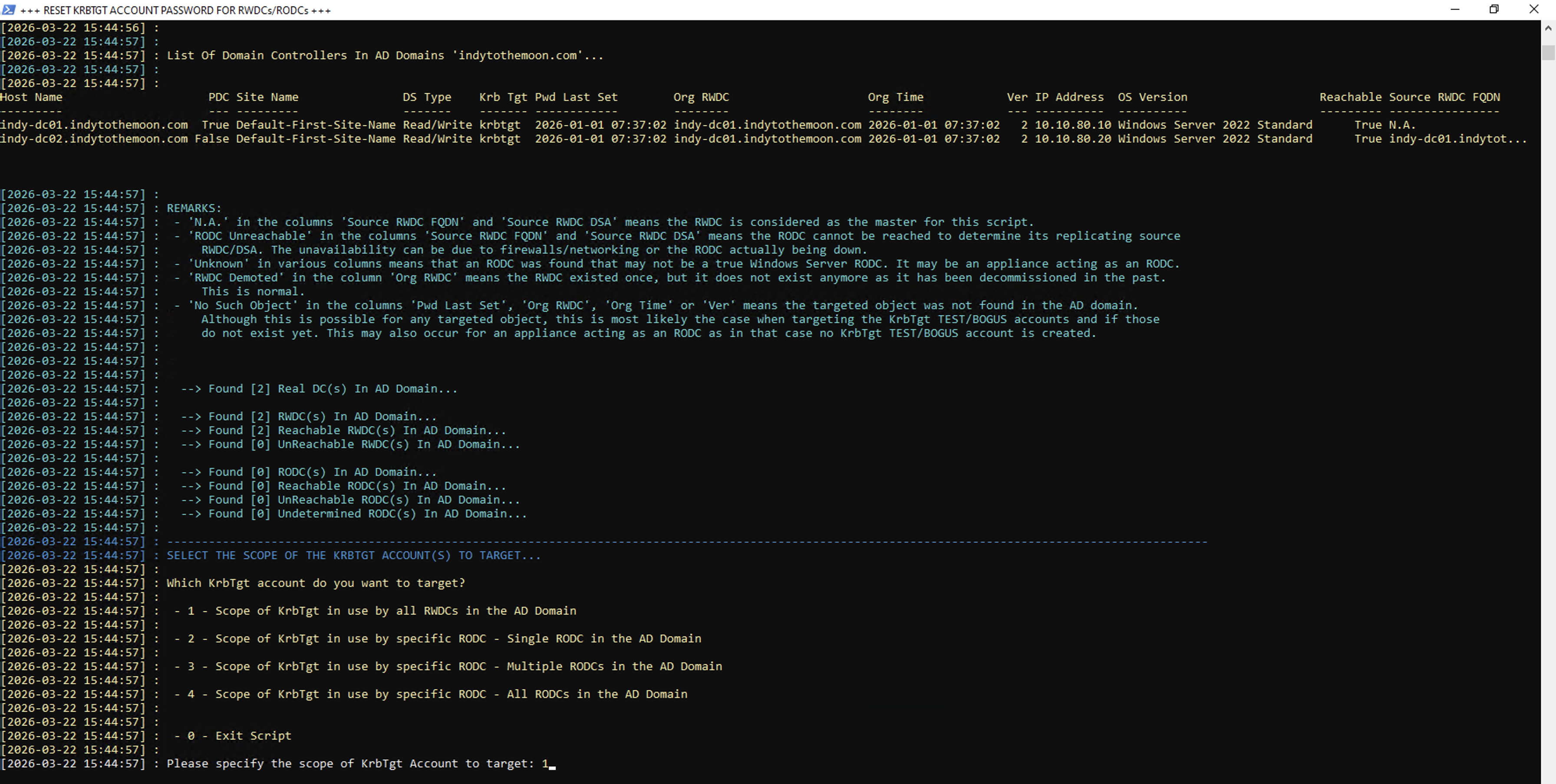
It’s crucial at this time to make sure all of your domain controllers are reachable. As you can see in my previous screenshot, each of the two domain controllers that I will be targeting have a value equal to True
Now that we are ready to go for rotation number one, we will type CONTINUE.

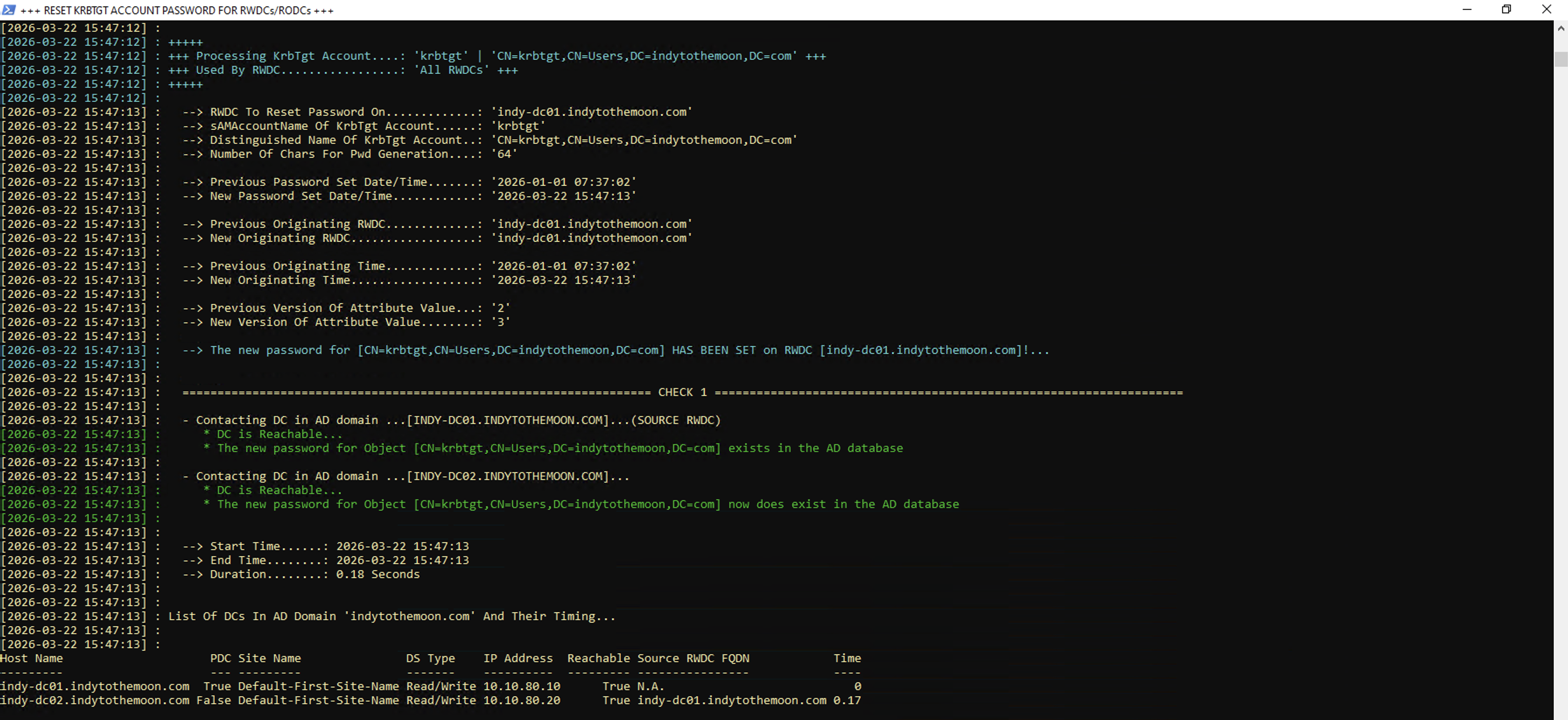
We have successfully rotated the KRBTGT user account credentials for the first round. We can double check on each domain controller, by navigating to the KRBTGT user account, and looking at the pwdLastSet attribute.
As we can see, it was just rotated on 03/22/2026
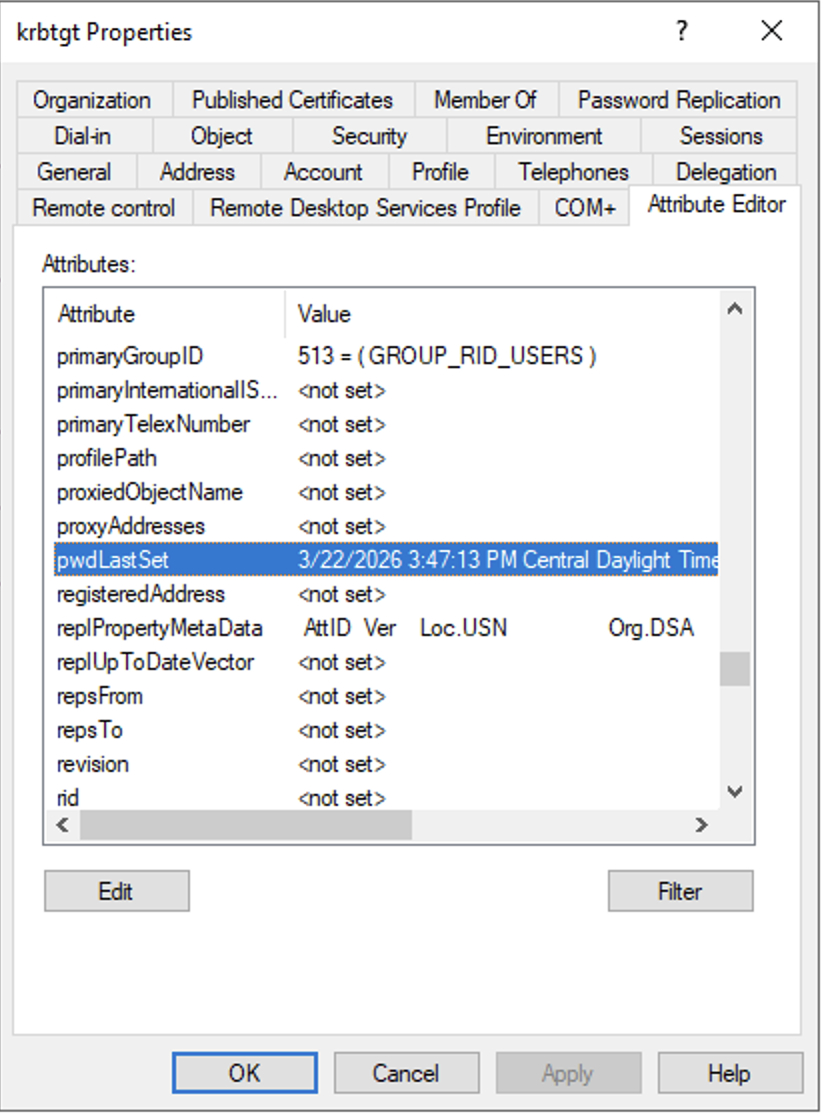
It’s critical that we wait at least 12 hours (24 hours recommended) between rotations.
Part 5. Rotate the KRBTGT user account credentials (Second Round)
All the steps in this process are going to be the exact same steps in step #4. Please refer to all of those steps.
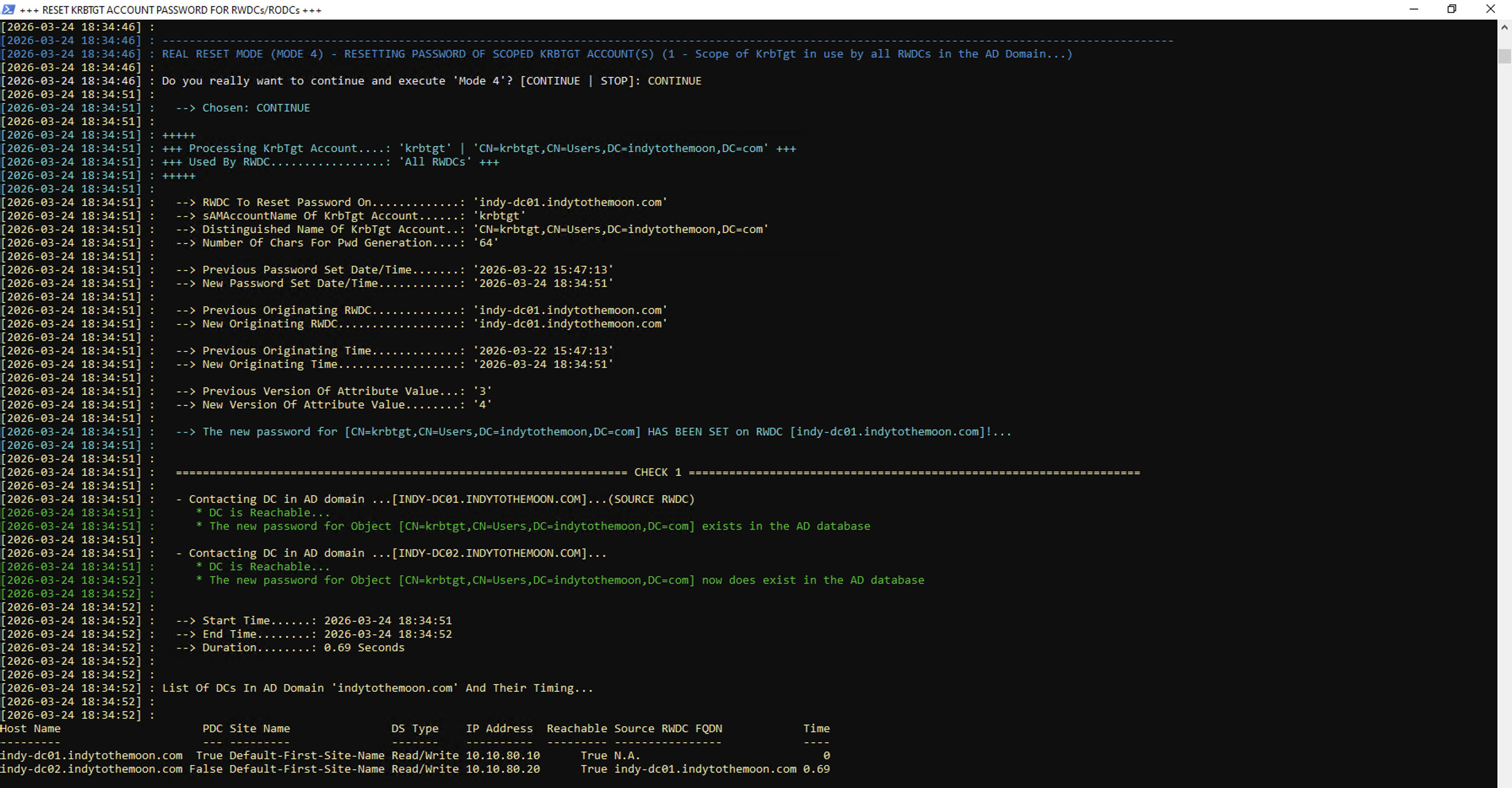
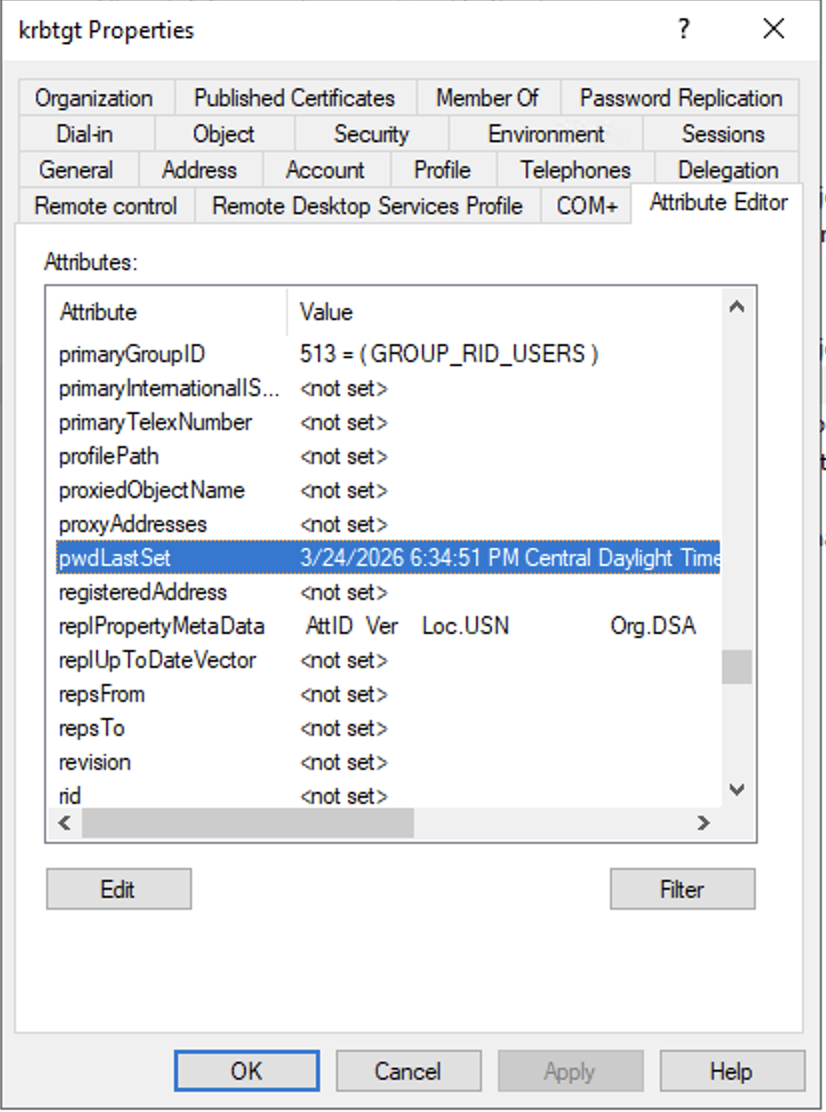
We have successfully rotated the KRBTGT user account credentials! We can double check on each domain controller, by navigating to the KRBTGT user account, and looking at the pwdLastSet attribute.
We can confirm the pwdLastSet attribute was updated on 03/24/2026.
Part 6. Delete the KRBTGT_TEST user account
Now that the KRBTGT user account has been rotated twice, we can proceed with deleting the KRBTGT_TEST user account that we created with this PowerShell script for testing purposes only.
Open PowerShell as Administrator one last time and execute the New-KrbtgtKeys.ps1 script.
This time, we are going to select Mode #9
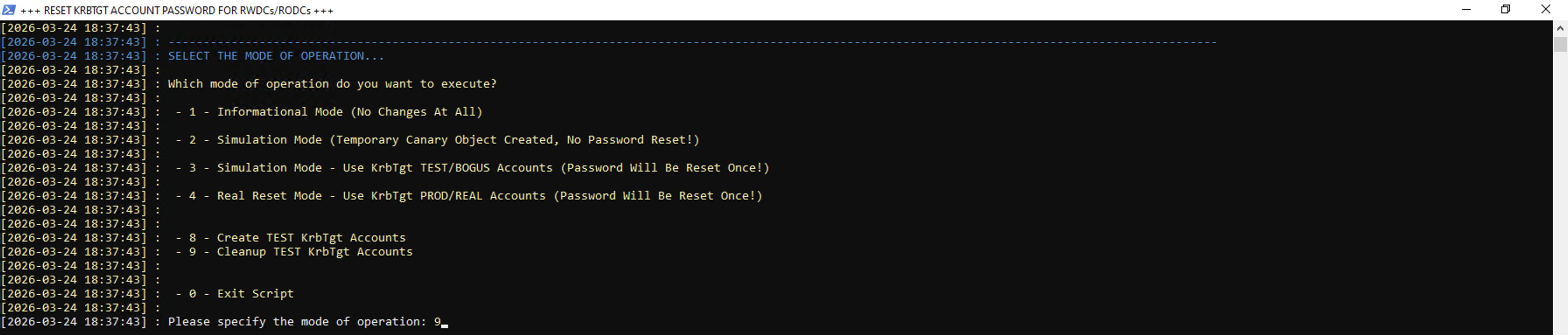
One last time, since we only have one domain that we will be targeting, you do not need to specify the FQDN, so you can hit Enter, and then Enter again.
Now that we are ready to remove the KRBTGT_TEST user account, we can type out CONTINUE. One item to take note again, is to validate all of your domain controllers are reachable. In my case, both are, so I will hit enter.
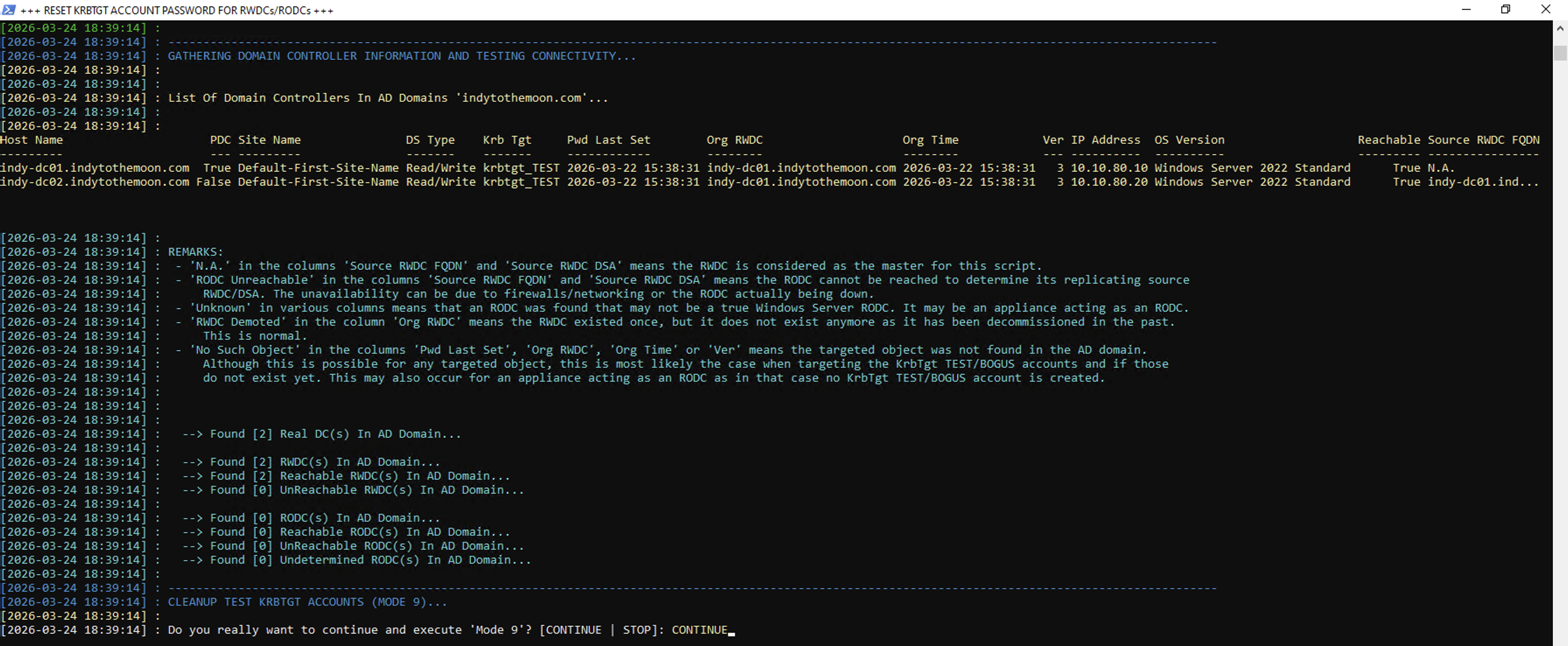
The KRBTGT_TEST user account has now been deleted from active directory.
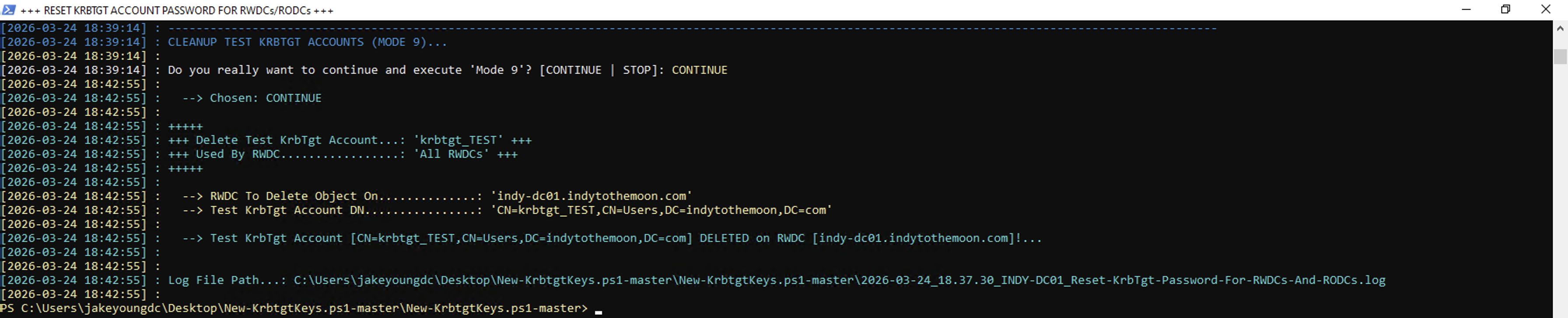
We can confirm this statement, by navigating back to ADUC and confirming it’s no longer listed under the built-in Users organizational unit.