Azure - Logic App - Client Secret Expiration
Build an Azure Logic App that automates Microsoft Entra ID application secret expiration monitoring and administrator notifications.
Objective
This guide demonstrates how to build an Azure Logic App that monitors Microsoft Entra ID application secrets and automatically notifies administrators before those secrets expire.
The solution uses a system-assigned managed identity to authenticate to Microsoft Graph, eliminating the need to manage an application secret for the automation itself.
After completing this guide, the Logic App will:
- Retrieve all registered applications from Microsoft Entra ID.
- Identify application secrets that expire within a defined notification period.
- Generate an HTML report of expiring secrets.
- Send notifications to Microsoft Teams and email recipients.
- Eliminate the need for stored credentials by using a system-assigned managed identity.
Skills Learned
- Authenticate to Microsoft Graph without client secrets.
- Monitor Microsoft Entra ID application secrets.
- Automate notification workflows with Azure Logic Apps.
- Build maintainable cloud automation by using native Azure services.
Steps
Part 1: Prerequisites
- Azure subscription
- Resource Group
- Microsoft Graph PowerShell module
- Automation or service account with Microsoft Teams and Exchange Online licensing
Part 2: Create the Logic App
Create a new Logic App in Azure using your preferred naming convention.
Example:
Entra-Expiring-Secrets-Checker
After deployment:
- Open the Logic App.
- Navigate to Settings → Identity.
- Enable the System-assigned Managed Identity.
- Record the Object (Principal), as it will be used in the next step.
Part 3: Grant Microsoft Graph Permissions
Assign the Application.Read.All Microsoft Graph application permission to the Logic App’s system-assigned managed identity.
Run the following PowerShell script:
1
2
3
4
5
6
7
8
9
10
11
12
13
14
15
16
17
18
# Add the correct 'Object (principal) ID' for the Managed Identity
$ObjectId = "MIObjectID"

# Add the correct Graph scope to grant
$graphScope = "Application.Read.All"

Connect-MgGraph -Scope AppRoleAssignment.ReadWrite.All
$graph = Get-MgServicePrincipal -Filter "AppId eq '00000003-0000-0000-c000-000000000000'"

$graphAppRole = $graph.AppRoles | ? Value -eq $graphScope

$appRoleAssignment = @{
    "principalId" = $ObjectId
    "resourceId"  = $graph.Id
    "appRoleId"   = $graphAppRole.Id
}

New-MgServicePrincipalAppRoleAssignment -ServicePrincipalId $ObjectID -BodyParameter $appRoleAssignment | Format-List
After the permission is assigned, the Logic App can read Microsoft Entra ID application registrations.
Big Picture Overview
1
2
3
4
5
6
7
8
9
10
11
12
13
14
15
16
17
18
19
20
21
22
23
24
25
26
27
28
29
30
31
32
33
34
35
36
Workflow Overview

Recurrence
      │
      ▼
Get Future Time
      │
      ▼
Get Applications
      │
      ▼
For Each Application
      │
      ├── Get Owners
      │
      └── For Each Secret
              │
              ▼
        Secret expires within 15 days?
              │
      ┌───────┴────────┐
      │                │
     Yes              No
      │                │
      ▼                ▼
Append HTML       Continue
Increment Counter
      │
      ▼
Counter > 0?
      │
      ▼
Compose HTML
      │
      ▼
Teams + Email
Build the Workflow
Open your Logic App in Edit mode and configure the following workflow actions.
Recurrence (Action #1)
Purpose: Triggers the Logic App on a scheduled basis. In this example, the workflow runs every Monday at 10:00 AM Eastern Time to check for application secrets that are approaching expiration.
- Interval:
1 - Frequency:
Week - Time Zone:
(UTC-05:00) Eastern Time (US & Canada) - On these days:
Monday - At these hours:
10 - At these minutes:
0
Preview: Runs at 10:00 on Monday every week
Get Future Time (Action #2)
Purpose: Calculates a future date that serves as the notification threshold. Any application secret expiring before this date will be included in the report.
- Interval:
15 - Time unit:
Day
Initialize Variable (Action #3)
Purpose: Creates variables that are used throughout the workflow. One variable stores the HTML table rows for the report, while the other keeps track of how many expiring secrets are found.
Within this action, you will have to create two new variables
- Name:
Initialize variables - Counter
1. Variable
- Name:
AppList-HTML - Type:
String - Value:
leave empty
2. Variable
- Name:
Counter - Type:
Integer - Value:
0
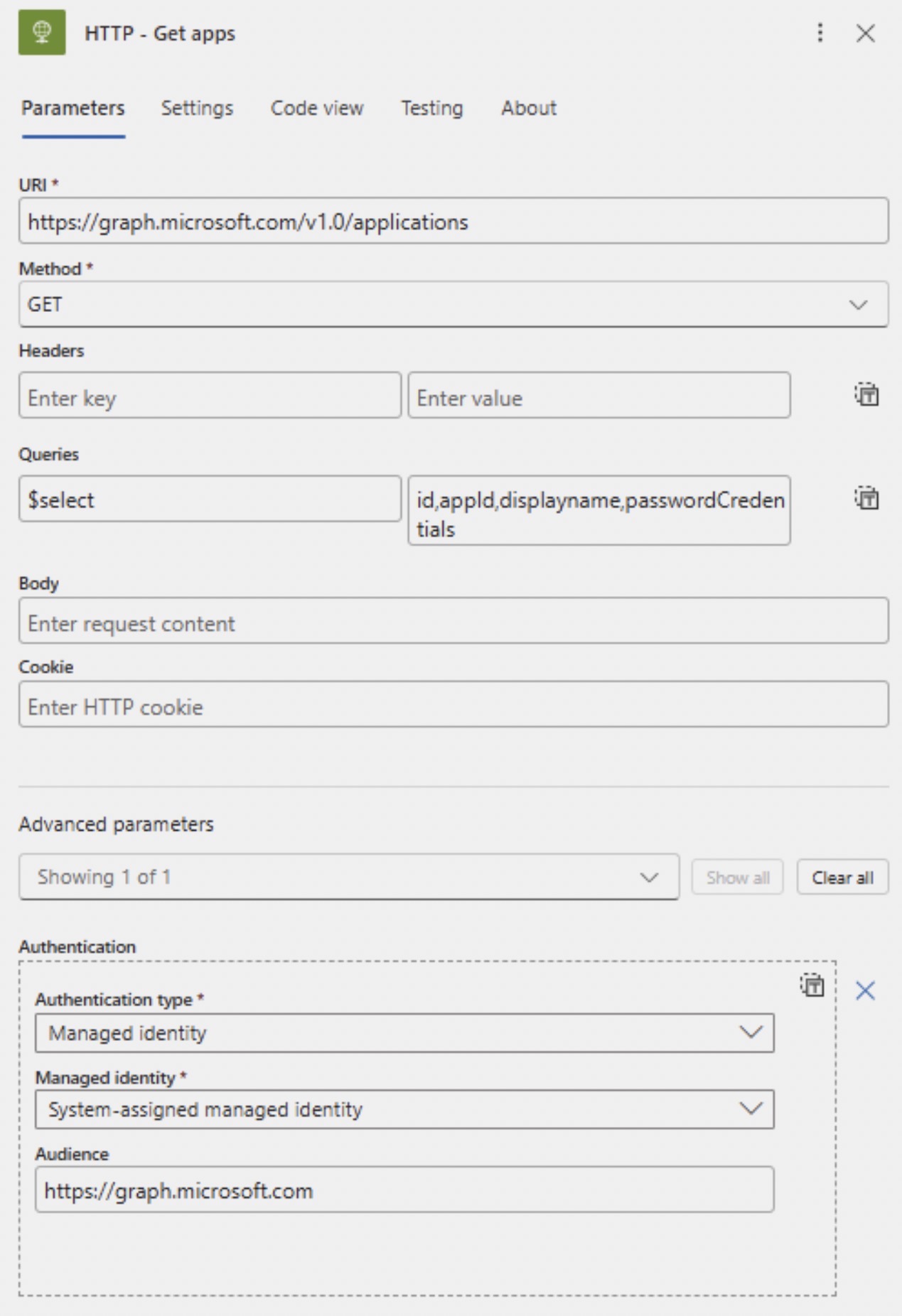
HTTP (Action #4)
Purpose: Uses the Logic App’s system-assigned managed identity to call Microsoft Graph and retrieve all Microsoft Entra ID application registrations, including their client secrets.
- Name:
Get apps - URI:
https://graph.microsoft.com/v1.0/applications - Method:
GET - Headers:
leave key and value empty - Queries:
$selectid,appId,displayname,passwordCredentials - Body:
leave empty - Cookie:
leave empty
Advanced parameters
- Authentication Identity`
- Managed identity:
System-assigned managed identity - Audience:
https://graph.microsoft.com
Click on the
Settingstab and scroll down toThreshold. Depending on the number of application registrations in your tenant, you may need to Enable this toggle and enter in a value of1000.
Parse JSON (Action #5)
Purpose: Parses the JSON response returned by Microsoft Graph into a structured format, allowing subsequent actions to reference application properties using dynamic content.
- Name:
Parse JSON - HTTP - Get Apps - Content:
body('HTTP_-_Get_apps') - Schema: Use the following JSON schema.
1
2
3
4
5
6
7
8
9
10
11
12
13
14
15
16
17
18
19
20
21
22
23
24
25
26
27
28
29
30
31
32
{
  "properties": {
      "@@odata.context": {},
      "value": {
          "items": {
              "properties": {
                  "appId": {},
                  "displayName": {},
                  "id": {},
                  "passwordCredentials": {
                      "items": {
                          "properties": {
                              "customKeyIdentifier": {},
                              "displayName": {},
                              "endDateTime": {},
                              "hint": {},
                              "keyId": {},
                              "secretText": {},
                              "startDateTime": {}
                          },
                          "type": "object"
                      },
                      "type": "array"
                  }
              },
              "type": "object"
          },
          "type": "array"
      }
  },
  "type": "object"
}
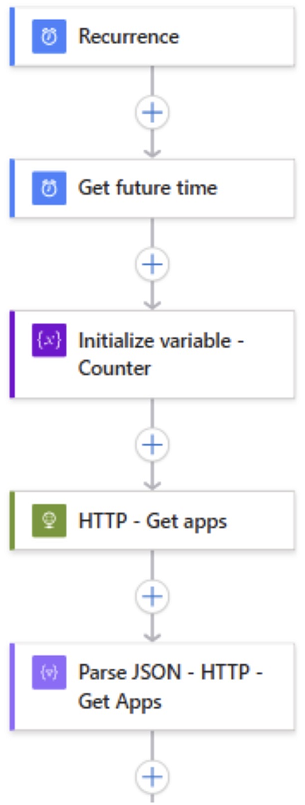
At this point, your Logic App should look like this:
For Each Outer Loop
For Each (Action #6)
Purpose: Iterates through every application registration returned by Microsoft Graph so each application can be evaluated individually.
- Name:
For each - Apps - Select an output from previous steps:
outputs(Parse_JSON_-_HTTP_-_Get_Apps')?['body']?['value']
HTTP (Action #7)
Purpose: Retrieves the owner(s) of the current application registration from Microsoft Graph. This information is later included in the notification so administrators know who is responsible for each application.
- Name:
HTTP - Get Owners - URL:
https://graph.microsoft.com/v1.0/applications/items('For_each_-_Apps')?['id']/owners - Method:
GET - Headers:
leave key and value empty - Queries:
$selectuserPrincipalName - Body:
leave empty - Cookie:
leave empty
Advanced parameters
- Authentcation type:
Managed Identity - Managed identity:
System-assigned managed identity - Audience:
https://graph.microsoft.com
Parse JSON (Action #8)
Purpose: Parses the application owner information into a structured format, making the owner’s User Principal Name (UPN) available for later actions.
- Name:
Parse JSON - Get Owners - Content:
body('HTTP_-_Get_Owners') - Schema:
1
2
3
4
5
6
7
8
9
10
11
12
13
14
{
    "properties": {
        "value": {
            "items": {
                "properties": {
                    "userPrincipalName": {}
                },
                "type": "object"
            },
            "type": "array"
        }
    },
    "type": "object"
}
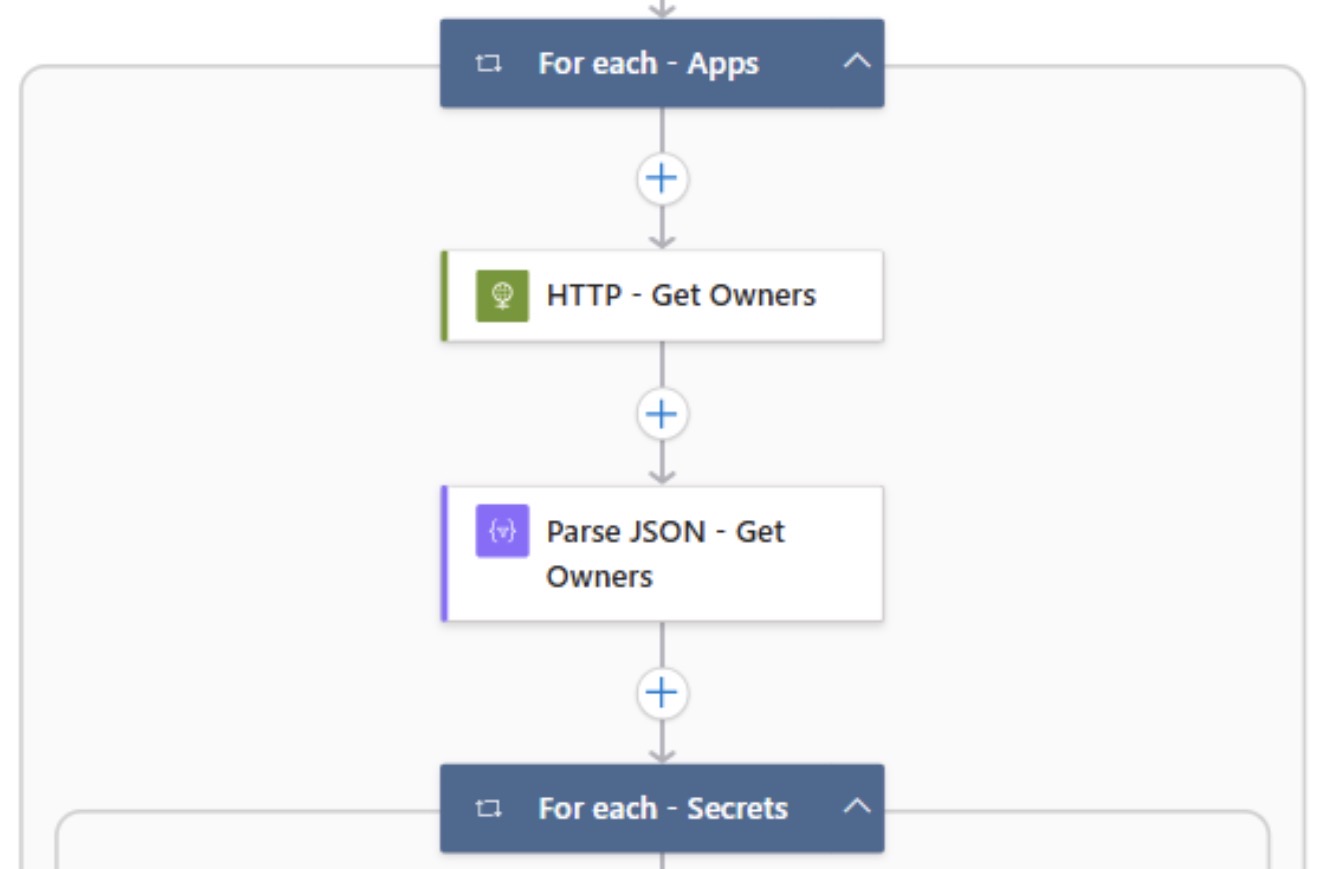
Overview of For each - Apps Outer Loop
For Each Inner Loop
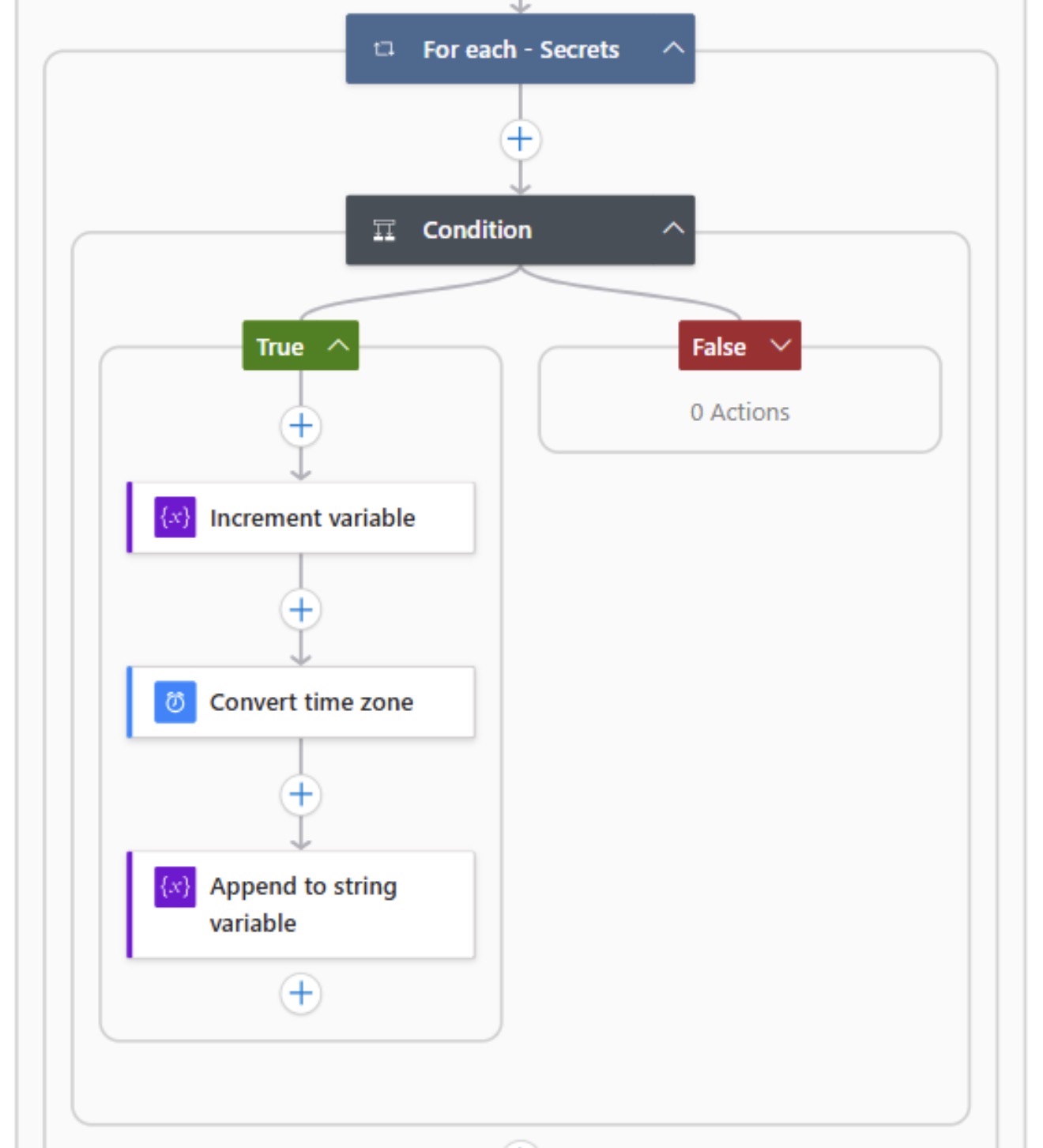
For Each (Action #9)
Purpose: Loops through every client secret associated with the current application registration. Since an application can have multiple secrets, each one is evaluated independently.
- Name:
For each - Secrets - Select an output from previous step:
items()?['passwordCredentials']
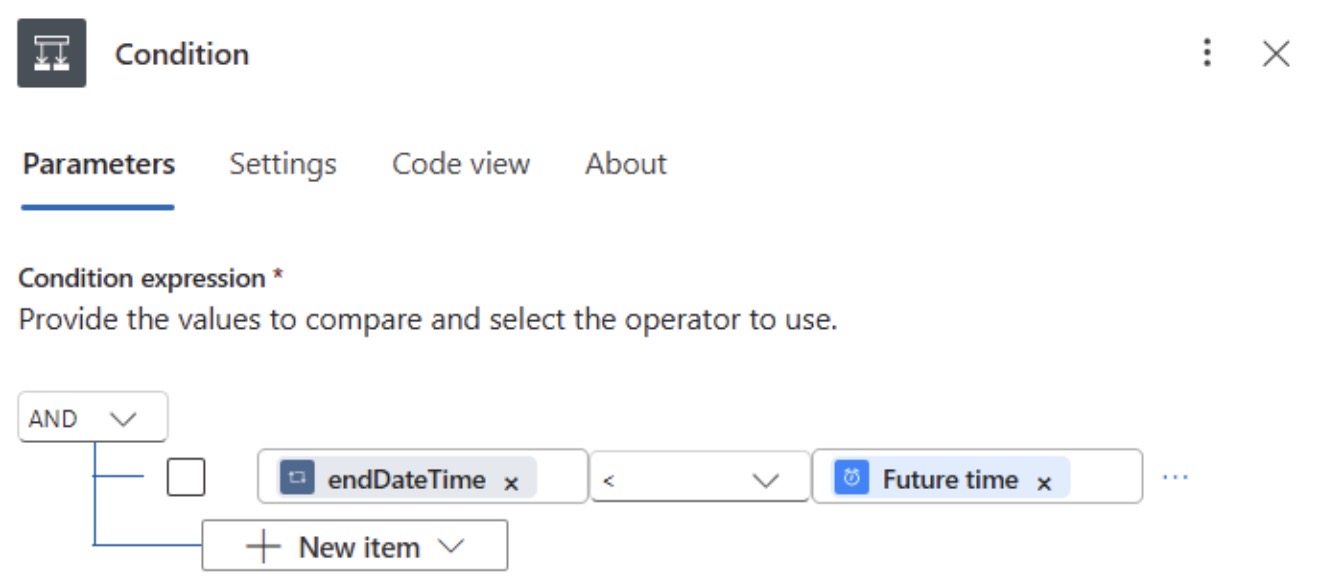
Condition (Action #10)
Purpose: Compares each secret’s expiration date with the notification threshold calculated earlier. Only secrets that expire before the threshold continue through the workflow.
- Name:
Condition - Condition Expression:
ANDitem()?['endDateTime']<body('Get_future_time')
Increment variable (Action #11)
Purpose: Increments the counter each time an expiring secret is found. This value is later used to determine whether notifications should be sent.
-
Name:
Increment variable - Name:
Counter - Value:
1
Convert time zone (Action #12)
Purpose: Converts the secret’s expiration date from UTC to the desired local time zone, making the notification easier for recipients to read.
- Name:
Convert time zone - Base time:
items('For_each_-_Secrets')?['endDateTime'] - Source time zone:
(UTC) Coordinated Universal Time - Destination time zone:
(UTC -05:00) Eastern Time (US & Canada) - Time unit:
General data/time pattern (short time) - 6/15/2009 1:45 PM [g]
Append to string variable (Action #13)
Purpose: Creates a new HTML table row containing information about the expiring secret, including the application name, App ID, secret name, owner, and expiration date. Each matching secret is appended to the HTML report.
-
Name:
Append to string variable - Name:
AppList-HTML - Value:
1
2
3
4
5
6
7
<tr>
    <td>items('For_each_-_Apps')?['displayName']</td>
    <td>items('For_each_-_Apps')?['appid']</td>
    <td>items('For_each_-_Secrets')?['displayName']</td>
    <td>body('Parse_JSON_-_Get_owners')?['value'][0]?['userPrincipalName']</td>
    <td>body('Convert_time_zone')</td>
</tr>
Overview of For each - Secrets Inner Loop
Notification Logic
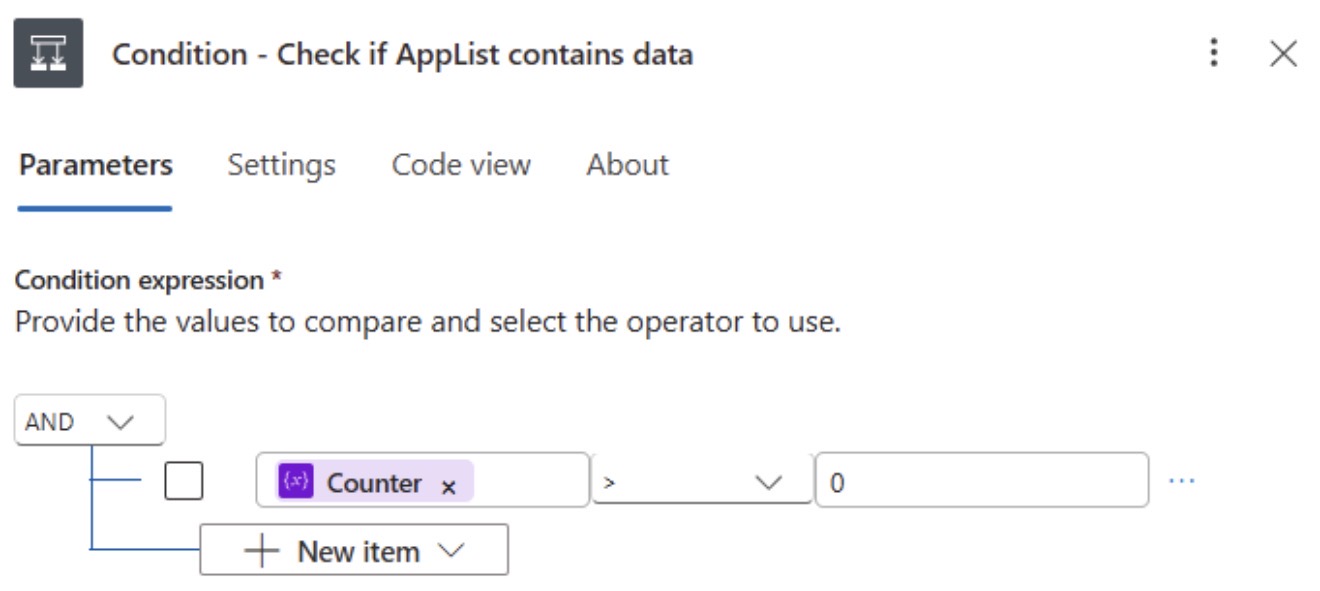
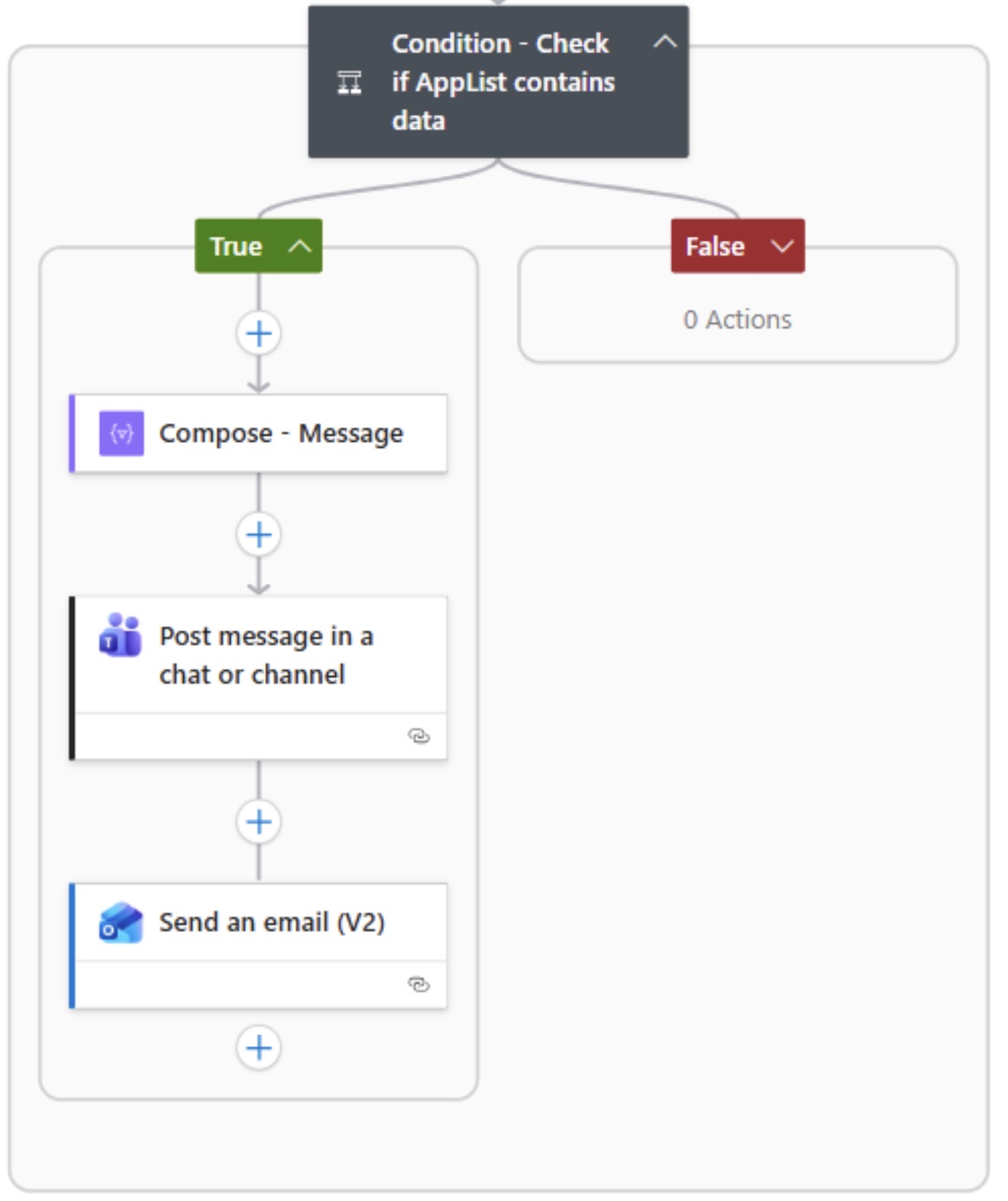
Condition (Action #14)
Purpose: Determines whether any expiring secrets were found. If the counter is greater than zero, the workflow proceeds to generate and send notifications. Otherwise, the workflow completes without sending any messages.
Create a Condition action at the root level of the workflow to verify that the Counter variable is greater than 0. This ensures notifications are sent only when one or more secrets are approaching expiration.
- Name:
Condition - Check if AppList contains data - Condition Expression:
ANDvariables('Counter')>0
Compose (Action #15)
Purpose: Builds the complete HTML report by combining the table structure with the rows collected during the workflow. This formatted output is used in both Microsoft Teams and email notifications.
- Name:
Compose - Message - Inputs:
1
2
3
4
5
6
7
8
9
10
11
12
13
14
15
<style>table, th, td {border: 1px solid;}table{width: 100%;border-collapse: collapse; }</style>
<table>
         <thead>
             <tr>
                 <th>App Display Name</th>
                 <th>App ID</th>
                 <th>Secret Display Name</th>
                 <th>App Owner</th>
                 <th>Secret Expiry Date</th>
             </tr>
         </thead>
         <tbody>
             variables('AppList-HTML')
         </tbody>
</table>
Post message in a chat or channel (Action #16)
Purpose: Posts the HTML report and accompanying instructions to a Microsoft Teams channel, notifying application owners and administrators of secrets that require attention.
- Name:
Post message in a chat or channel - Post as:
User - Post in:
Channel - Team:
<Group Name> - Channel:
<Channel Name> - Message:
1
2
3
4
5
6
7
8
9
10
🚨 Attention Team 🚨
This is a reminder that one or more application registration secrets are about to expire. If you are listed as the owner of an expiring secret, please take action to avoid any service interruptions
outputs('Compose_-_Message')

What to expect:

Tagging: We will tag specific application owners in <Teams Channel> when a secret needs to be rotated.
Acknowledgement: When tagged, please respond or react with 👀 to confirm you have seen the notification.
New Secret: A member of the <Team> will contact you with a new secret for your application
Secret Rotation: Once the secret has been successfully rotated in the application, please mark this notification message with ✅, we will then proceed with removal of old secret from Entra ID.
Send an email (V2) (Action #17)
Purpose: Sends an email containing the HTML report and instructions for requesting a replacement client secret, ensuring application owners receive a direct notification in addition to the Teams message.
- To:
Add recipient email address - Subject:
New Entra Secret Required - Body:
1
2
3
4
5
6
7
8
9
10
11
12
13
14
15
16
This is a reminder that one or more application registration secrets are approaching expiration. If your name is listed next to an expiring secret, please take action to avoid any service interruptions.

outputs('Compose_-_Message')

Required Actions:

1. When the secret you own is listed above, you can use <Teams Channel> for further instructions. If you are not a member of <Teams Channel>, please create a ticket at least three days before the expiration date by sending an email to <Ticketing Queue>.
2. Ticket Subject: "New Entra Secret Required"
3. Ticket Body: "Include the App ID in the body of the ticket.

We will process your request and provide a new secret for your application.

Thank you for your prompt attention to this matter.

Best Regards
<Team/Name>
Overview of Notification Logic
Testing the Workflow
Before placing the Logic App into production, validate the workflow by:
- Running the Logic App manually.
- Confirming that application registrations are returned.
- Verifying that only secrets expiring within the configured threshold are included.
- Confirming the HTML report renders correctly.
- Verifying Microsoft Teams and email notifications are delivered successfully.